
About cost accounting
As well as managing your general accounts, the software lets you analyse your accounting data.
This chapter briefly introduces you to the basics of the software’s cost accounting functionality.
Management and analysis by category
Imagine that your company has several premises at different addresses: Boudry, Bulle and Geneva.
Imagine that your company has several premises at different addresses: Boudry, Bulle and Geneva.
The software offers you another method, which consists of placing the 3 rents in a single expense account (“6000 Rent”), using categories to distinguish each rent.
With this method, all the company’s costs are pooled together, leaving you the choice of looking at the figures as a whole or by category. For example, you can view only the charges for Boudry.
You can therefore create categories and sub-categories within the software. For example, the locations (Boudry, Geneva, etc.) and the various departments (depot, worksite, etc.) for each location. Up to 10 levels of categories can be created.
In short, cost accounting enables accounts to be grouped and segmented according to different analysis criteria.
1. Create an accounting category
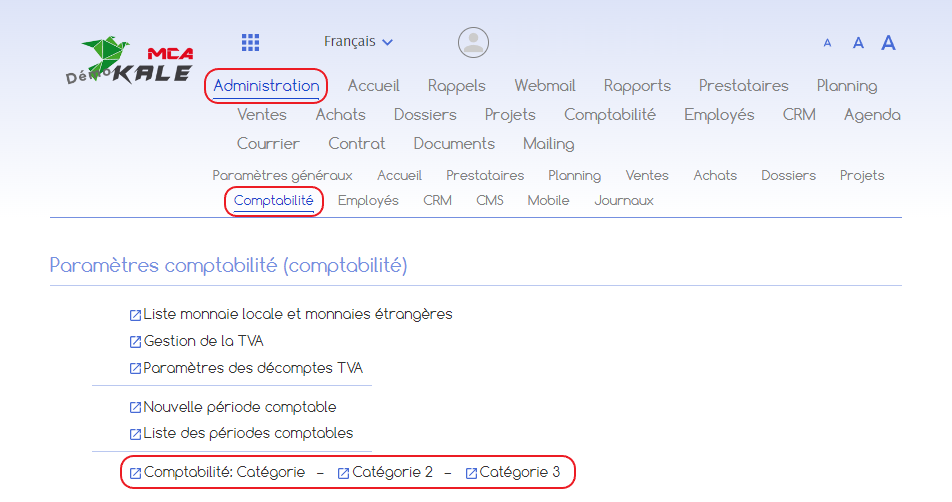
To create a category, go to the ‘Administration’ menu, then ‘Accounting’ and click on one of the category links depending on the level of category you wish to create. You can also define the category level in the next step.
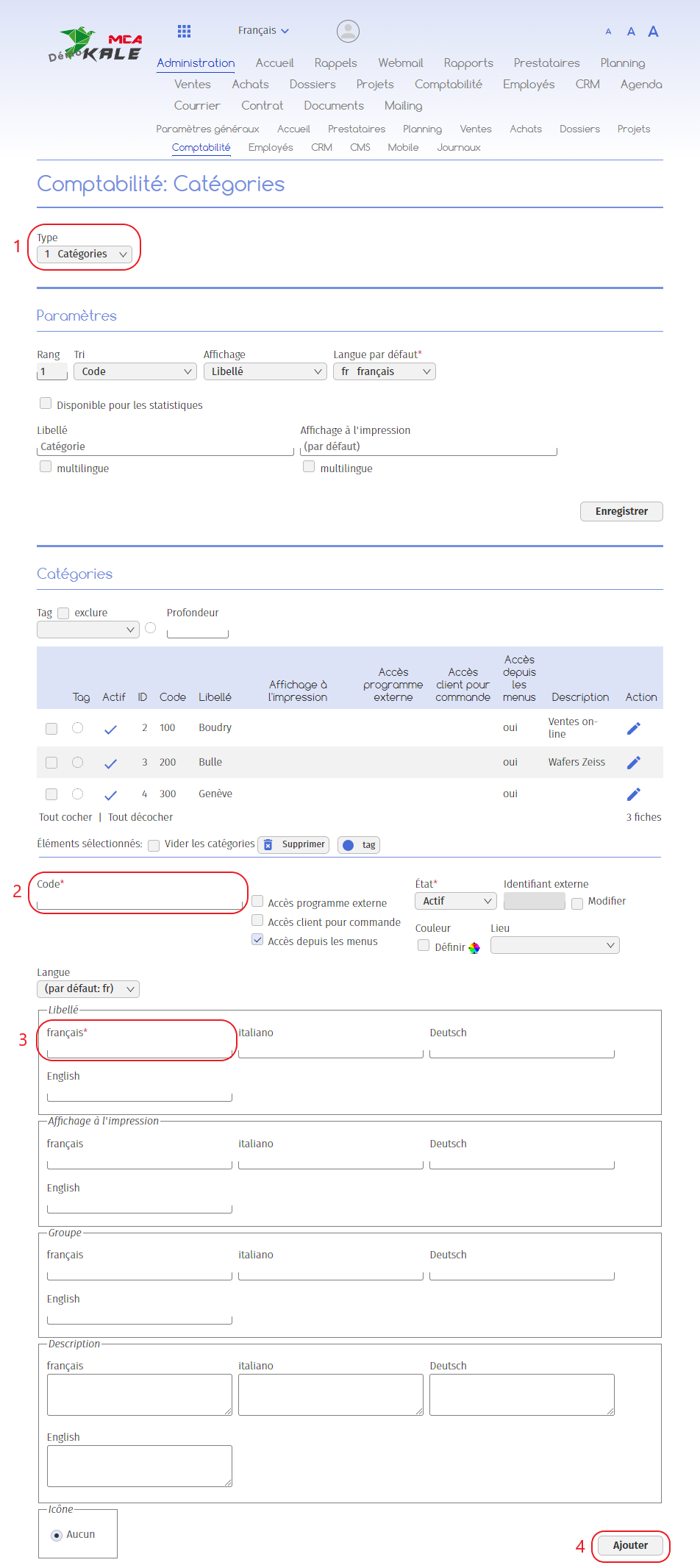
Here :
1. Choose the category level;
2. Define the category code.
If you are adding a location, you can choose to use the postcode. For example, if you need to create an account for Colombier, you can use the code “2013”. The code you choose here is used to structure the information. It is up to you to define the type of code to use according to your company’s internal logic;
3. Add the name of your category;
4. Click on “Add” to create the category.
2. Link an entry to a category
Refer to the “Posting journal” guide for information on entering postings.
When you enter an entry, you can link it to an accounting category and sub-categories.
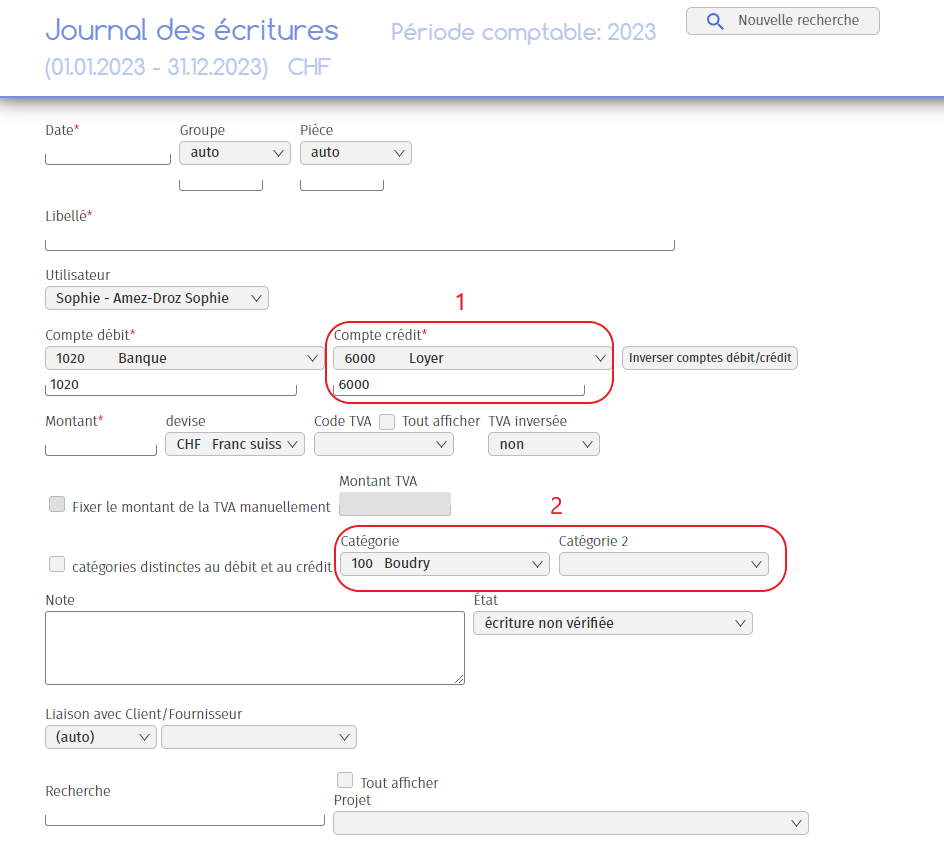
Let’s go back to our rent example. You want to account for the payment of rent for your offices in Boudry. When you make your entry, you will choose :
1. 6000 Rent” credit account;
2. The “100 Boudry” category.
In this way, your entry will be associated with the correct account.
3. Filter data by category
When you consult the summary of your expenses, sales or balance sheets, you can filter the data according to the categories you have created.
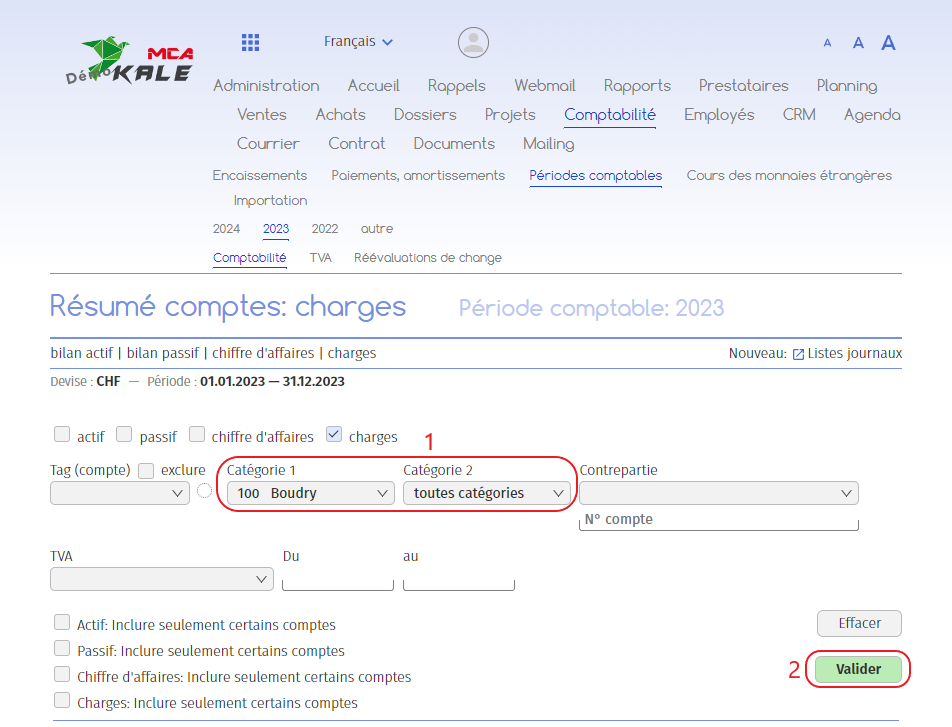
To do this :
1. Choose one or more categories;
2. Click on “Validate” to filter the results.